How to Embed Instagram Reels in Framer (Live, Auto-Updating, No Code)
Instagram Reels are the highest-reach content format on the platform right now. Here's the only way to embed live, auto-updating Reels on your Framer site natively, without iFrames, without code.
Instagram Reels now get 22% more reach than regular posts. If you're a creator, designer, or brand using Framer, those Reels belong on your site not hidden behind a link in your bio.
The problem is that most "embed Instagram" tools either don't support Reels at all, or they dump your videos into an iFrame that ignores your site's design and slows your page load. There's exactly one Framer plugin that embeds Instagram Reels natively as an actual Framer component and that's Social Hampster.
This guide will show you how to embed Instagram Reels in Framer in under five minutes, with every config option explained.

Start embedding Threads in Framer Totally free
Unlimited views on paid plans. No credit card required and it takes 5 minutes to setup
Why Instagram Reels in Framer Is Harder Than It Should Be
Framer is built for designers and every designer knows that iFrames break everything. They don't inherit your fonts. They have their own scrollbars. They get cut off on mobile. They load heavy Instagram scripts that tanks your Lighthouse score.
The other approach manually exporting Reels and uploading them to Framer as videos works, but it means your content is static. Post a new Reel and it won't appear on your site. You have to remember to go back, export, upload, republish. Nobody does that consistently.
The right solution is a native Framer component that connects to the Instagram API, fetches your Reels automatically, and renders them with your design system not Instagram's. That's exactly what Social Hampster built.
Social Hampster is the only Framer plugin with Reels support
Every other Instagram plugin for Framer (Behold, SociableKit, EmbedSocial) embeds a photo grid — but none of them fetches Reels. Social Hampster is the only one that pulls your Reels into a native Framer component.
What "Native" Means, Why It Matters for Reels
A native Framer component is one that lives inside Framer's component system. It:
Appears in your Layers panel like any other element
Responds to Framer's breakpoints (desktop, tablet, mobile)
Can be styled with props, no CSS files, no custom code
Loads as part of your site's bundle, not as a separate iFrame request
Doesn't inject Instagram's tracking script into your page
For Reels specifically, this means your videos load with your page, not after a 3-second iFrame delay, and they autoplay correctly on mobile without the broken scroll behavior that Instagram's native embed is notorious for.
How Social Hampster Reels Compare to Other Embed Options
Method | Reels Support | Native Framer | Auto-Updates | Page Speed Impact | Free |
|---|---|---|---|---|---|
Social Hampster | ✓ Reels + Photos | ✓ Component | ✓ Auto | Minimal | ✓ Unlimited views |
Behold.so | ✗ Photos only | ✗ iFrame | ✓ Auto | High (iFrame) | 1,000 views only |
Instagram native embed | ✗ No Reels | ✗ iFrame | ✗ Static | Very High | ✓ But limited |
Manual video upload | ✓ (manual) | ✓ Video element | ✗ Manual | High (self-hosted) | ✓ But time-costly |
SociableKit | ✗ Photos only | ✗ iFrame | ✓ Auto | High (iFrame) | 1,000 views only |
How to Embed Instagram Reels in Framer, Complete Step-by-Step Guide
Follow these steps exactly. The whole process takes under five minutes.
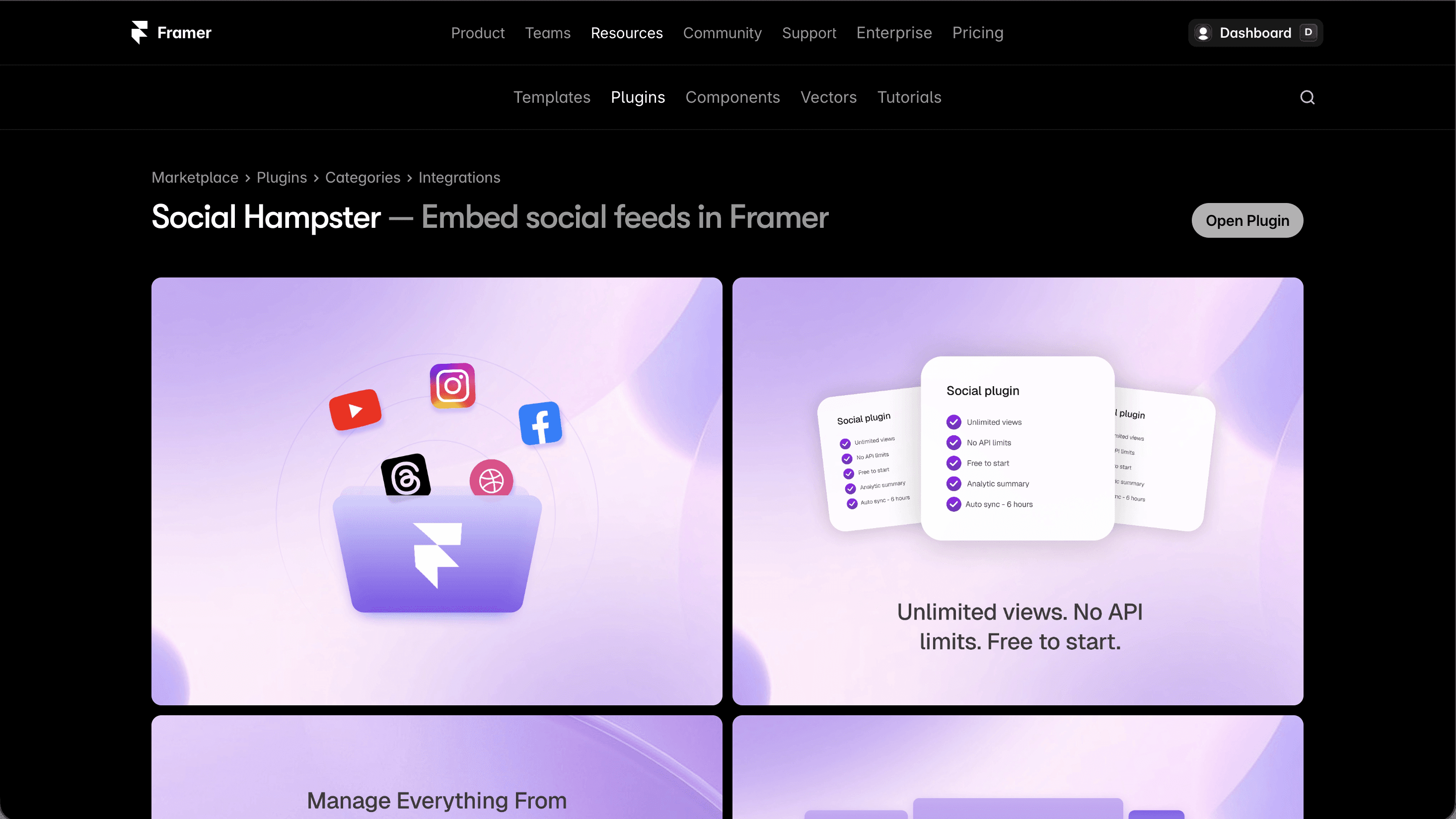
Install Social Hampster from the Framer Plugin panel
Open your Framer project. Click the Plugins icon (puzzle piece) in the left toolbar. Search Social Hampster → click Install. The plugin opens directly inside Framer no external tabs. After that, it is available in your Framer plugins list whenever you need it. Read docs for full picture.
Create your Social Hampster account (free)
In the plugin panel, click Sign up free. Enter your email and set a password, takes 30 seconds. Already have an account? Click Log in instead.
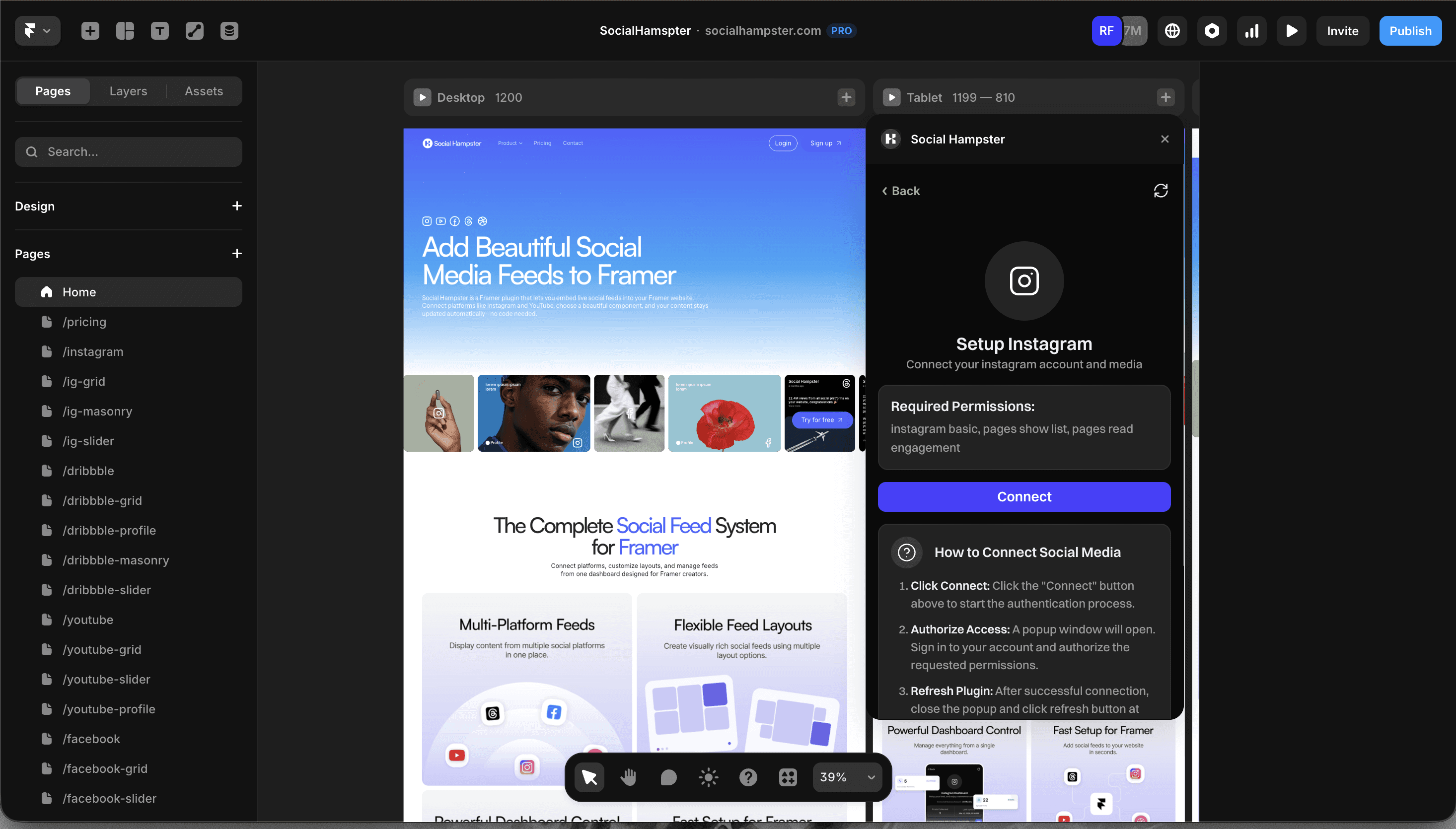
Connect your Instagram account via Meta OAuth
Go to Connections → Add Platform → Instagram. You'll see a Meta OAuth screen. Log in with the Instagram account you want to embed. Grant the required read permissions, Social Hampster only reads your posts, it never posts or modifies anything.
Set the media type to "Reels" in feed settings
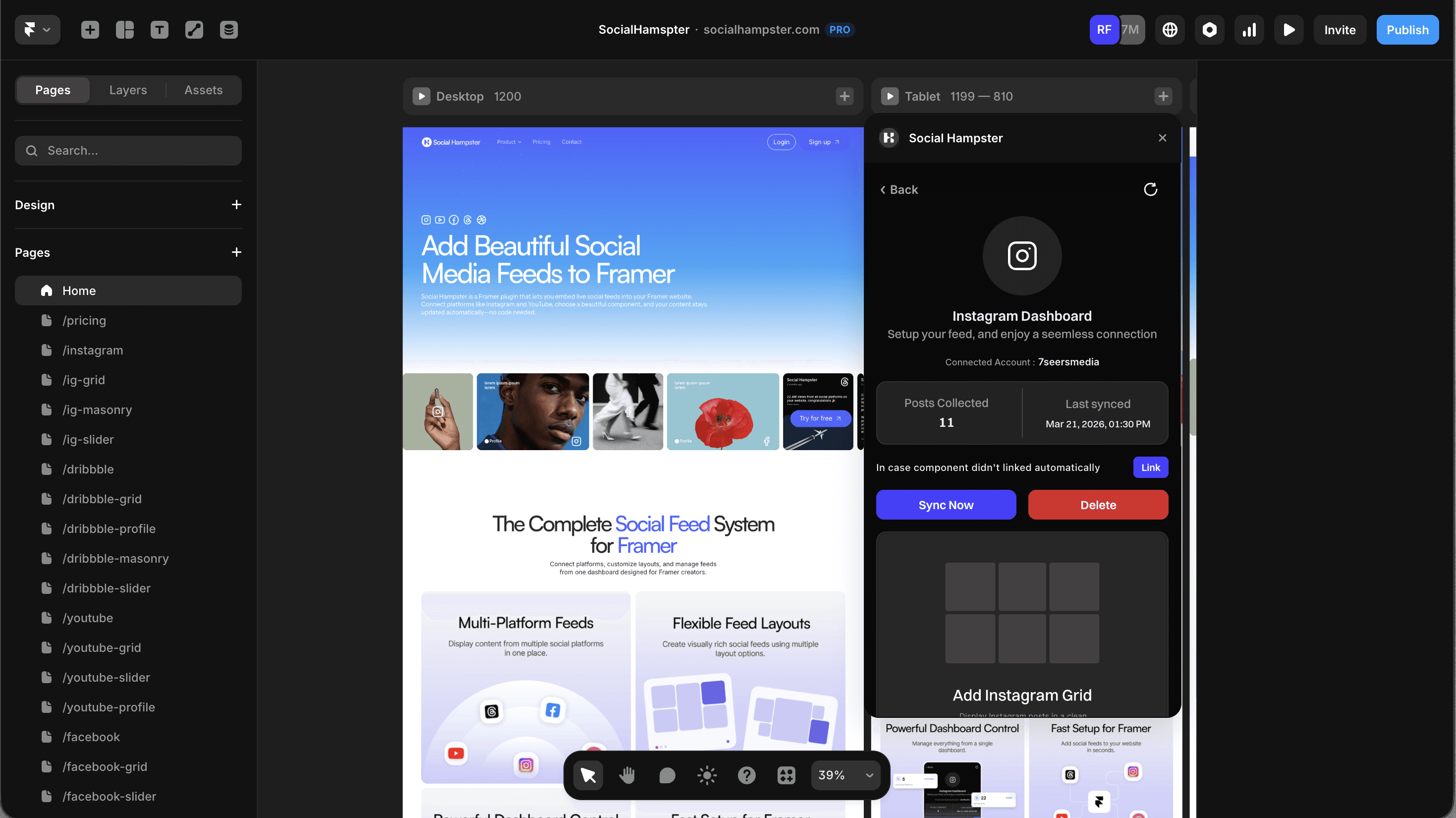
After connecting, you'll see a Feed Configuration panel. This is where you tell Social Hampster what type of Instagram content to show. Set the mediaType to one of:
reels— Shows only your Reelsall— Shows Reels + photos + carousels mixedimages— Photos only (no Reels)
For a pure Reels embed, select reels.
Choose your Instagram Reels component
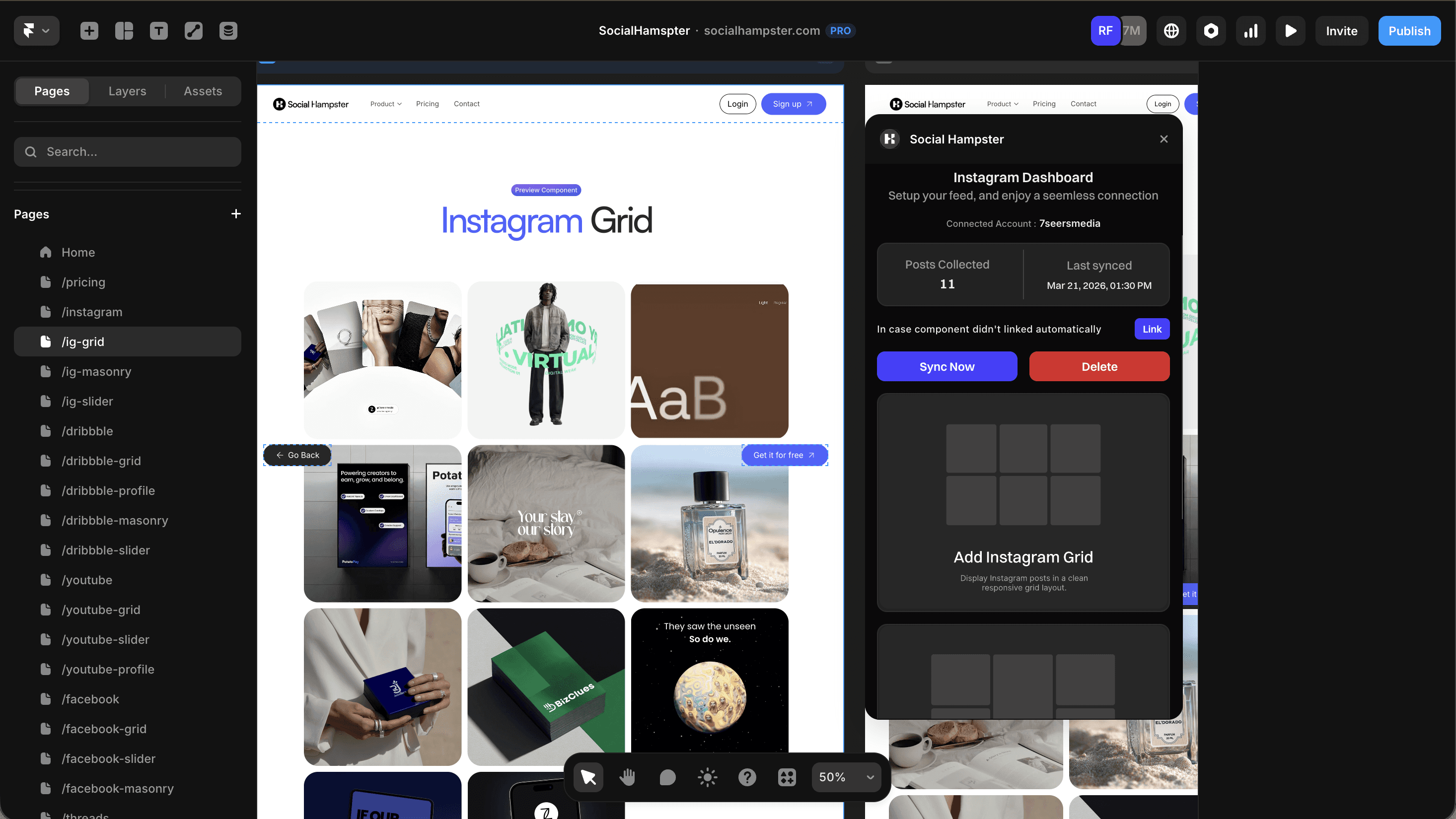
Social Hampster gives you three layout options for displaying Reels in Framer:
Instagram Grid — Classic multi-column layout. Best for portfolio pages, about pages. Free plan.
Instagram Masonry — Staggered cards, variable heights. Best for creative sites, agencies. Personal/Business plan.
Instagram Slider — Horizontal scrolling strip. Best for homepage feature sections. Personal/Business plan.
Drag the component onto your Framer canvas
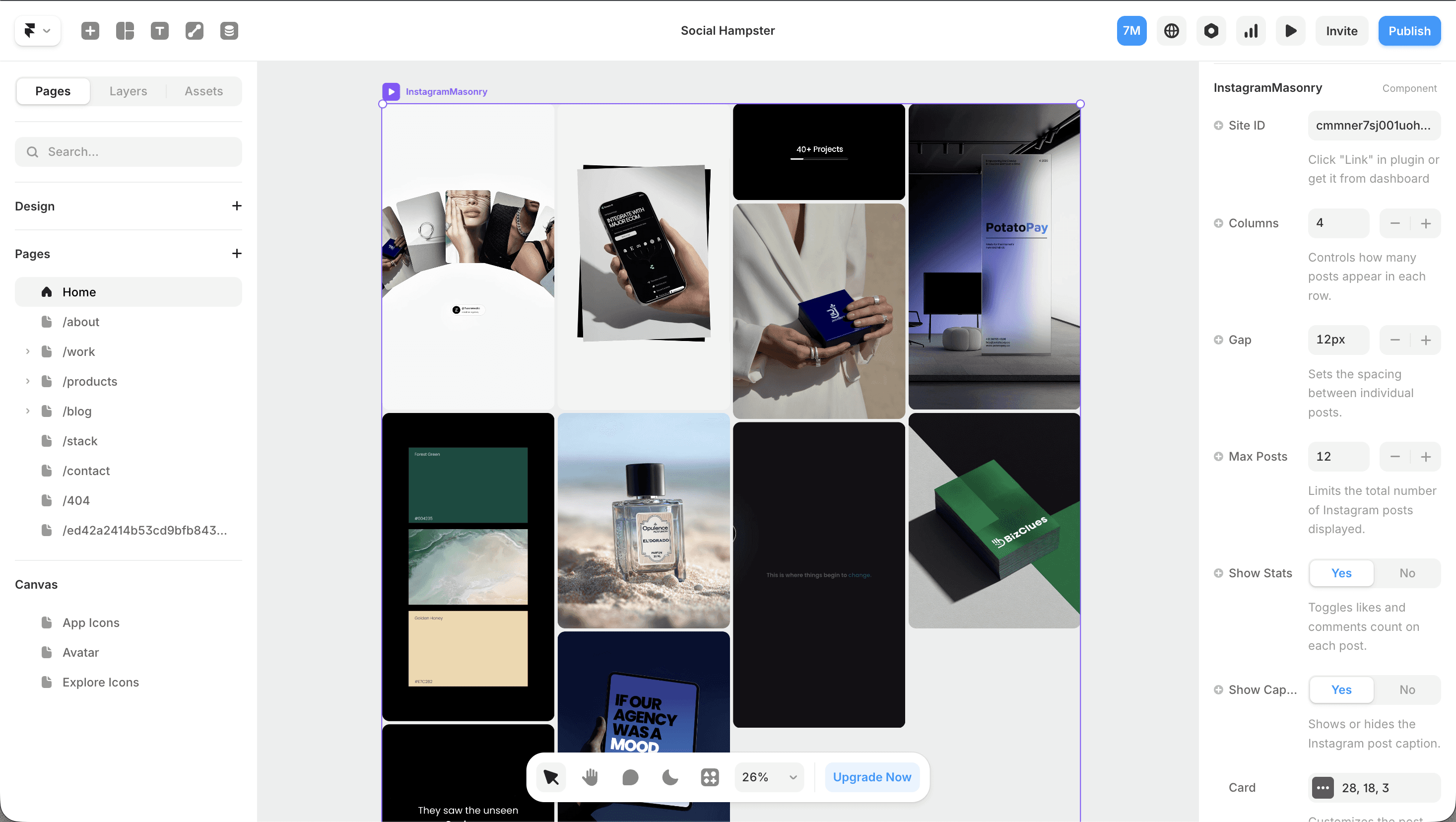
Drag the selected component from the plugin panel onto your canvas. It lands as a real Framer component. Check your Layers panel, you'll see it listed as a component, not as a code embed or iFrame.
Configure your Reels component props
With the component selected, the right panel shows all available props. Key Reels-specific props to set:
Whitelist your domain
In the Social Hampster dashboard at socialhampster.com/dashboard → Settings → Domain Whitelist, add your Framer domain. Add both your yoursite.com and your .framer.website preview URL.
Publish and verify
Click Publish in Framer. Visit your live site, your Reels should be loading within 2–3 seconds. New Reels you post to Instagram will appear automatically on your site without republishing.
Ready to show your Reels on your Framer site?
Free plan · 3,000 views/mo · Unlimited on paid plans · Native component · 5-minute setup
Advanced Tips for Instagram Reels in Framer
Show Reels on your homepage hero
Drop the Slider component into a narrow horizontal strip just below your hero headline. Set videoSettings.autoplay=true and maxPosts=6. This creates a dynamic social proof strip that shows you're actively creating, without overwhelming the design.
Create a dedicated "Videos" page
Add a /videos page in Framer. Drop the Grid component with columns=3 and maxPosts=24. Use mediaType="reels" so only Reels appear. This gives you an SEO-indexed video page that updates automatically.
Mix Reels and photos strategically
On a portfolio page, use mediaType="all" to show a diverse feed. On a case study page, use mediaType="reels" to highlight your process videos. Different pages can use different media types, each has its own component instance with its own props.
Reels performance tip
Set
videoSettings.autoplay=truefor above-the-fold components, it increases engagement. For below-the-fold or sidebar placements, set it to false to avoid battery drain on mobile.
Breakpoints: making Reels look great on mobile
In Framer's mobile breakpoint view, select the Reels component and change columns to 2 (or 1 for a full-width single column). The component re-renders independently at each breakpoint — no additional code or CSS overrides needed.
Related guides:
→ How to Embed a Full Instagram Feed in Framer (All Post Types)
→ How to Embed a Threads Feed in Framer
Instagram Reels Component — Full Props Reference
Prop | Type | Default | Description |
|---|---|---|---|
| string | auto | Your connected Instagram site ID (auto-filled) |
| number | 12 | Number of posts/Reels to display (1–50) |
| number | 4 | Grid columns on desktop (Grid & Masonry) |
| number | 12 | Gap between cards in px |
| boolean | true | Show engagement stats (views, likes) on cards |
| boolean | true | Show caption text on cards |
| number | 28 | Card corner radius in px |
| number | 1 | Card aspect ratio (1 = square) |
| string | #f3f4f6 | Card background color |
| string | "cover" | "cover" |
| number | 3 | Max caption lines before truncation |
| string | rgba(0,0,0,0.3) | Hover overlay color |
| number | 18 | Stats icon size in px |
| boolean | true | Lazy-load images for performance |
| boolean | true | Muted autoplay for Reels on load |
| boolean | true | Keep audio muted (browser policy) |
| boolean | true | Loop Reel playback |
| number | 0 | Auto-scroll ms interval (Slider only, 0 = off) |
| boolean | true | Show prev/next arrows (Slider only) |
| boolean | false | Use custom Framer components as arrows |
Which Plan Do You Need for Instagram Reels in Framer?
Feature | Free | Personal ($10/mo) | Business ($20/mo) |
|---|---|---|---|
Instagram Grid with Reels | ✓ | ✓ | ✓ |
Instagram Masonry with Reels | ✗ | ✓ | ✓ |
Instagram Slider with Reels | ✗ | ✓ | ✓ |
Views included | 3,000/mo | Unlimited | Unlimited |
Feed refresh rate | 30 min | 10 min | 10 min |
Analytics (clicks, views) | ✗ | ✓ | ✓ |
Multiple Instagram accounts | 1 | 3 | Unlimited |
Custom domains | 1 | 3 | Unlimited |
The view limit that kills competitors
Behold and SociableKit cap your free plan at 1,000 views/month. Their paid plans charge $50/month for just 50,000 views. Social Hampster's free plan includes 3,000 views/month, andpaid plans include unlimited views— no caps, ever.
Official Resources for Instagram Reels Integration
Can I embed Instagram Reels in Framer for free?
Yes. Social Hampster's Free plan includes the Instagram Grid component with Reels support and up to 3,000 page views per month. No credit card required. Personal and Business plans include unlimited views.
Why does the Reels embed need a Business or Creator account?
Instagram's API only exposes Reels for Business and Creator accounts, not Personal accounts. This is an Instagram API restriction, not a Social Hampster limitation. You can switch your account type free in Instagram Settings → Account Type → Switch to Professional Account.
Do the Reels autoplay on my Framer website?
Yes, by default Reels autoplay muted on hover (desktop) or on load (mobile). You can disable this with videoSettings.autoplay=false. Muted autoplay complies with browser autoplay policies — sound only plays when a visitor clicks a Reel.
My Reels show up in the plugin but not on my published site — why?
This is almost always a domain whitelist issue. Go to socialhampster.com/dashboard → Settings → Domain Whitelist and add your exact published domain (including the www or non-www version you use). The preview works in the plugin because it's localhost; the published site needs explicit whitelist approval.
Can I filter to show only specific Reels?
No but we are planning for this in future
Will new Reels I post automatically appear on my site?
Yes. Your feed refreshes every 24 hours on the Free plan and every 6 and 2 hours on Personal and Business plans. No republishing your Framer site is required.
Does embedding Reels slow down my Framer site?
Social Hampster loads Reels lazily — video thumbnails are loaded as images until a visitor hovers or interacts. This keeps your initial page load fast. Unlike iFrame embeds, no Instagram tracking scripts are injected into your page.
The only Framer plugin with native Instagram Reels support
Free plan: 3,000 views/mo · Paid plans: unlimited views · Native component · Setup in 5 minutes