How to Embed an Instagram Feed in Framer (Grid, Masonry & Slider Live, Auto-Updating)
The complete guide to embedding a live Instagram feed in Framer with all post types, Reels included, three layout options, and unlimited page views. No iFrames. No code. Done in five minutes.
You've built a great site in Framer. You post consistently on Instagram. But the two aren't connected every time someone lands on your site, they see a static design with no hint of the content you're creating daily.
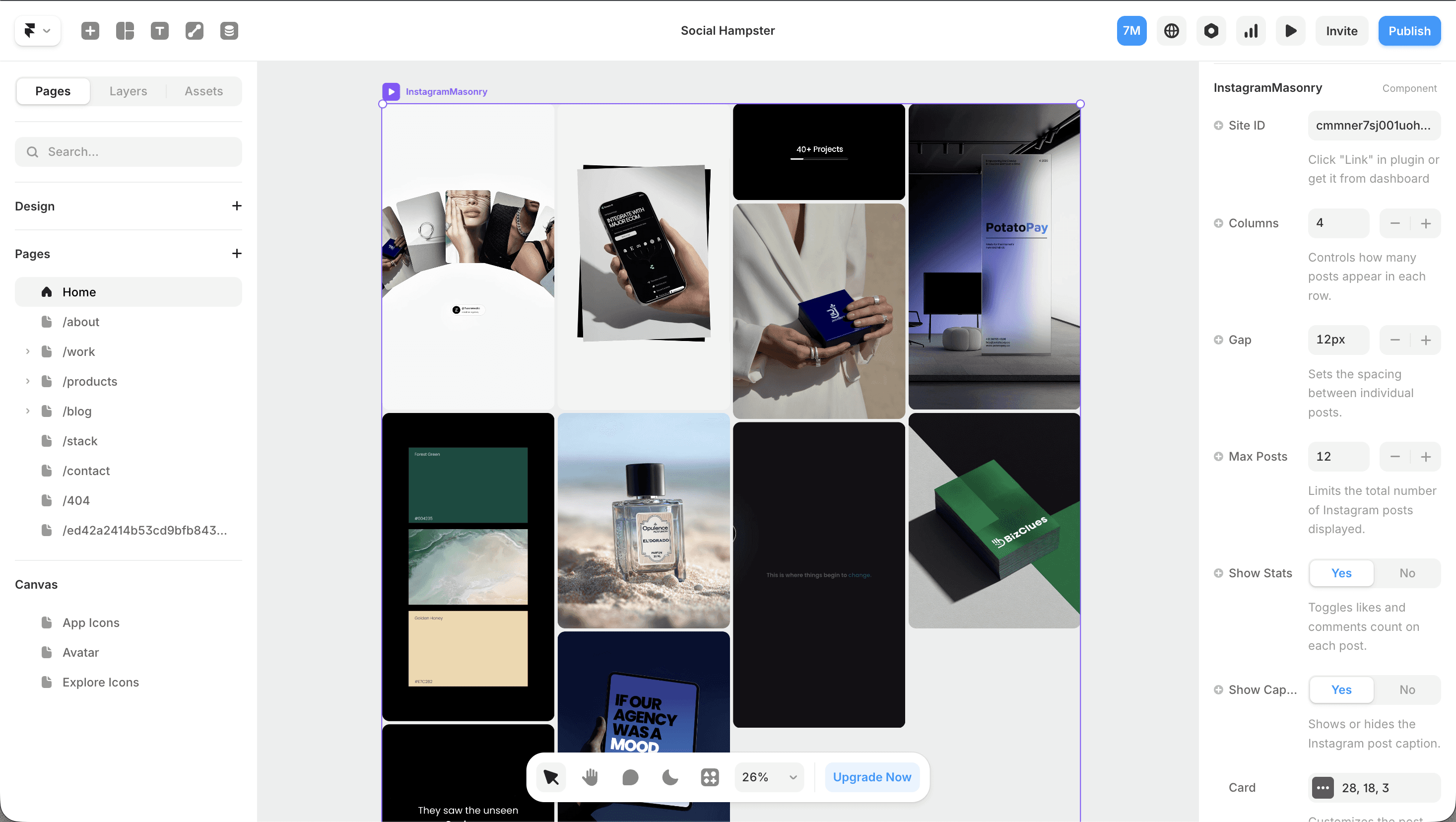
Embedding an Instagram feed in Framer closes that gap. Done right, it turns your site into a living proof of work photos, carousels, and Reels auto-updating every time you post, no site republishing needed.
This guide covers the complete setup using Social Hampster the only Framer plugin that embeds Instagram as a native component (not an iFrame), supports Reels, and offers unlimited page views on the free plan.

Embed Instagram in Framer for Free
Free: 3,000 views/mo · Paid: unlimited views · Grid, Masonry & Slider · Reels included · Setup in 5 minutes
Why Most Instagram Embeds Break in Framer
If you've tried embedding Instagram in Framer before, you've probably hit one of these problems:
iFrame embeds ignore your fonts, break on mobile, and inject Instagram's heavy tracking script into your page costing you 2–4 points on your Lighthouse performance score.
Static screenshots go stale the moment you post something new. You manually update them, or they rot.
Instagram's native oembed renders one post at a time, looks like Instagram's own UI (not your design), and doesn't support Reels in a gallery format.
Most Framer plugins that claim Instagram support embed a widget which is still an iFrame under the hood, with 1,000-view caps on free tiers.
The right approach is a native Framer component that pulls your Instagram content via the API, renders it using your design system, and updates automatically without touching Instagram's embed code at all. That's what Social Hampster does.
Native vs iFrame what you actually get
A native Framer component renders with your fonts, respects your breakpoints, and doesn't create a separate document context. Your Instagram feed becomes part of your site not a window into Instagram's UI.
Instagram Feed Layouts in Social Hampster: Grid, Masonry & Slider
Social Hampster gives you three distinct Instagram components each designed for a different use case.
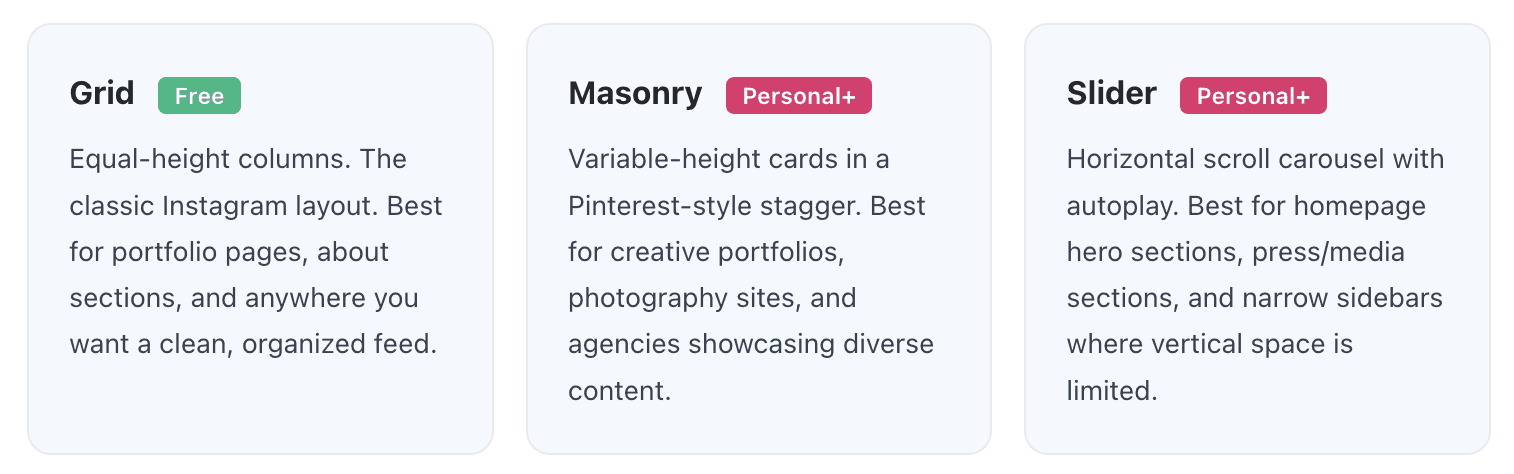
All three components support all Instagram content types: photos, carousels, and Reels. You control what appears using the mediaType prop.
Social Hampster vs Other Instagram Plugins for Framer
Feature | Social Hampster | Behold.so | SociableKit | Common Ninja |
|---|---|---|---|---|
Native Framer component | ✓ Yes | ✗ iFrame | ✗ iFrame | ✗ iFrame |
Instagram Reels support | ✓ Yes | ✗ No | ✗ No | ✗ No |
Grid layout | ✓ | ✓ | ✓ | ✓ |
Masonry layout | ✓ | ✗ | ✗ | ✗ |
Slider layout | ✓ | ✗ | Limited | ✗ |
Free plan views | 3,000/mo (unlimited on paid) | 1,000/mo | 1,000/mo | 1,000/mo |
Analytics dashboard | ✓ | ✗ | ✗ | Paid only |
Works inside Framer panel | ✓ | Separate app | Separate app | Separate app |
How to Embed an Instagram Feed in Framer — Step by Step
Open Framer and install Social Hampster
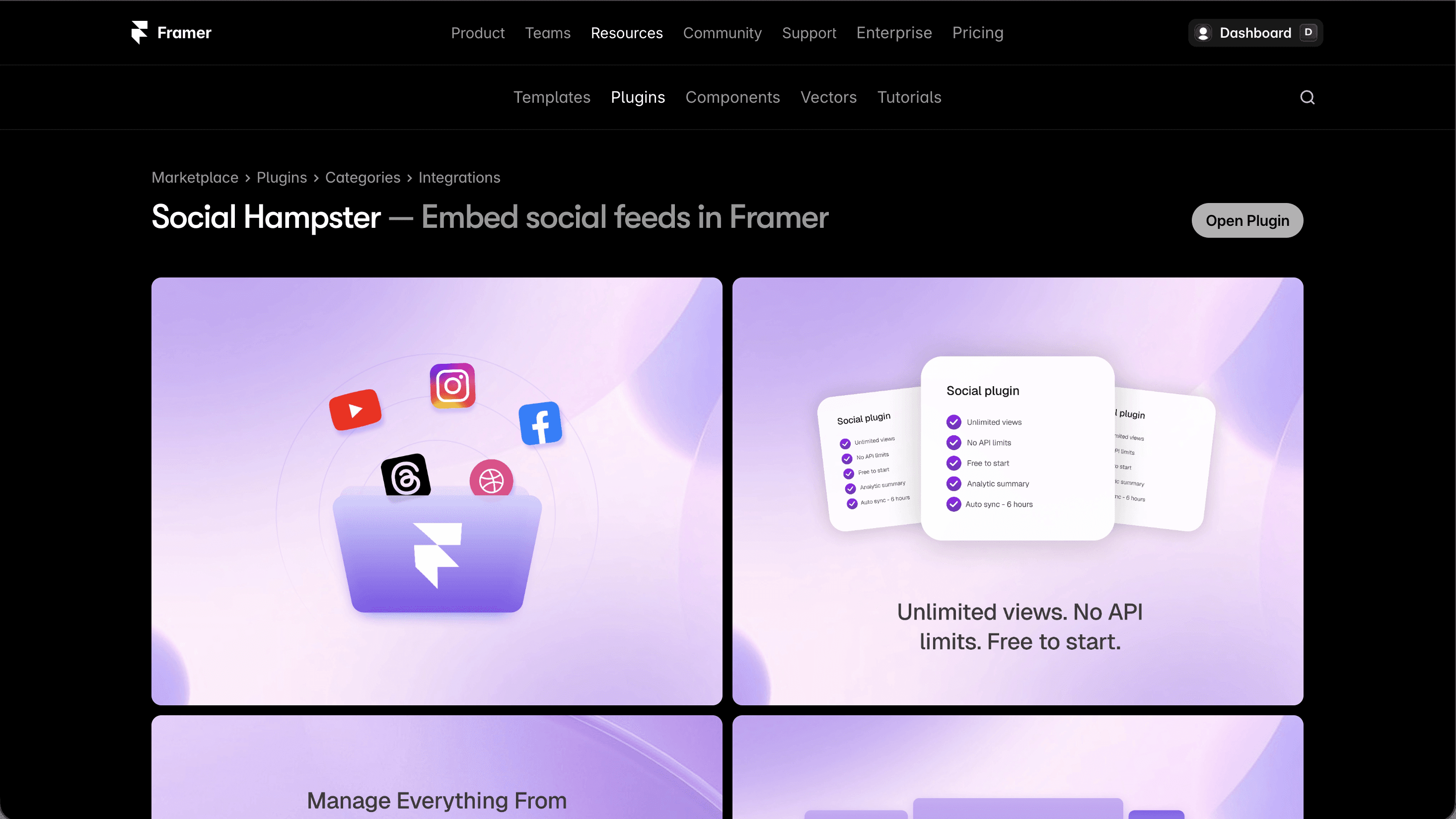
Open your Framer project. Click the Plugins icon (puzzle piece) in the left toolbar. Search Social Hampster → click Install. The plugin opens directly inside Framer no external tabs. After that, it is available in your Framer plugins list whenever you need it. Read docs for full picture.
Sign in or create your free account
Click Sign up free — enter your email and set a password. If you have an account, click Log in. Authentication stays inside the plugin panel.
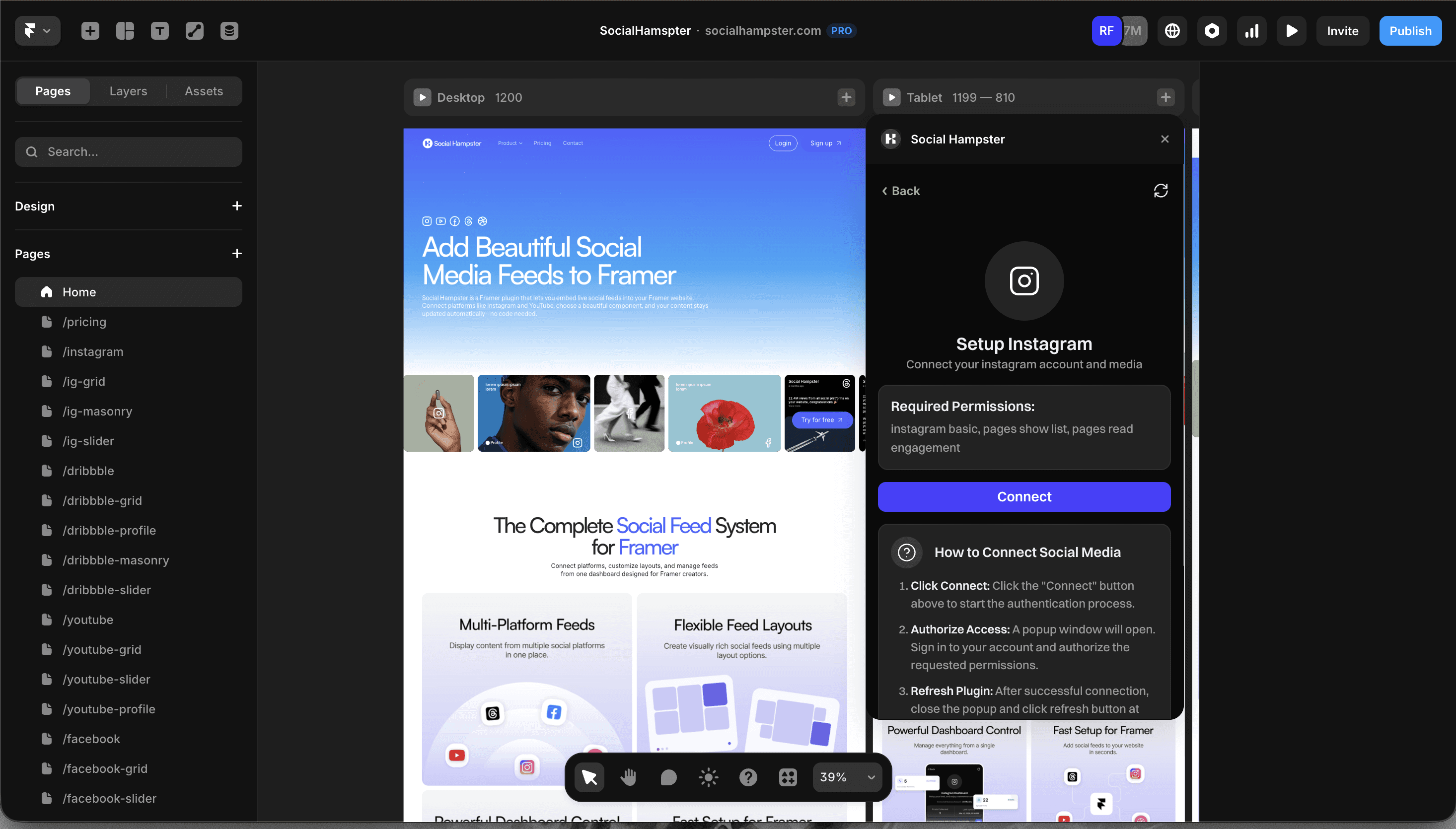
Connect your Instagram account
In the plugin dashboard: Connections → Add Platform → Instagram. A Meta OAuth window opens. Log in with the Instagram account you want to embed and grant read-only access. Social Hampster only ever reads your posts.
Requires a Creator or Business account
Instagram's API restricts feed and Reels access to Creator and Business accounts. If your account is Personal, go to Instagram → Settings → Account → Switch to Professional Account. It's free and takes 60 seconds.
Choose your layout: Grid, Masonry, or Slider
After connecting Instagram, the plugin shows your component options. Select the layout that fits your design:
Grid — For structured portfolio and about sections
Masonry — For creative, editorial layouts
Slider — For homepage sections and narrow placements
If you're on the Free plan, start with Grid. You can always upgrade and swap to Masonry or Slider later just replace the component on canvas.
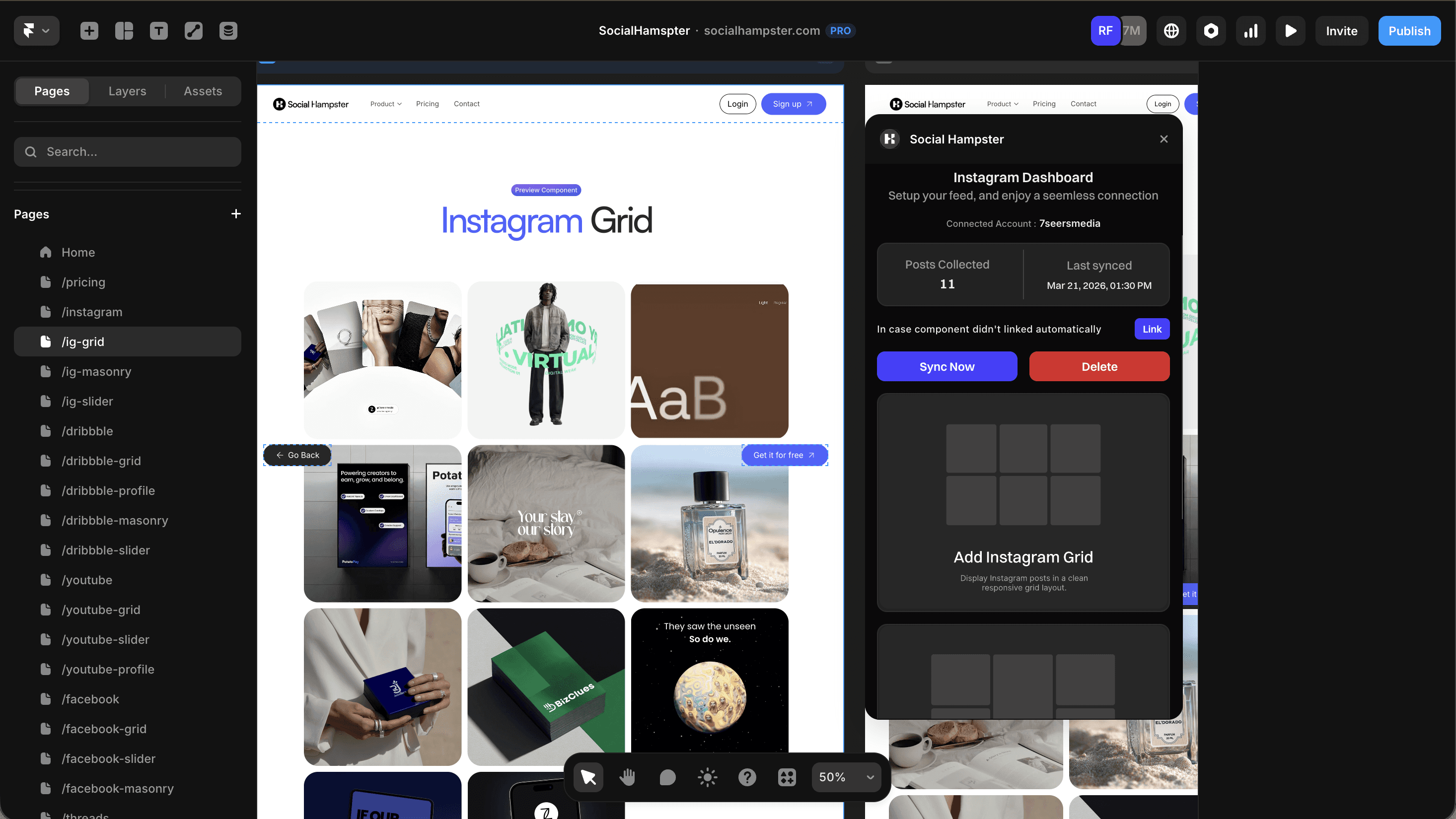
Drag the component onto your Framer canvas
Drag the selected component from the plugin panel to your canvas. It appears in the Layers panel as a named component. You can position, resize, and nest it like any other Framer element.
Configure your component props
With the component selected, open the right panel. Configure your feed settings:
Add your domain to the whitelist
In the Social Hampster dashboard: Settings → Domain Whitelist → Add Domain. Enter your published domain (yourdomain.com). Also add your Framer preview URL (yoursite.framer.website) so it works in preview mode too.
Skip this step and the feed won't load
Domain whitelisting is a security feature. If you don't add your domain, the feed will show in the Framer plugin but not on your published site. This is the #1 cause of "Instagram feed not working" issues in Framer.
Publish your Framer site
Click Publish in Framer. Visit your live site the Instagram feed loads within seconds. Going forward, it refreshes automatically as you post new content to Instagram.
Your Instagram feed is 5 minutes away
Free plan · 3,000 views/mo · Unlimited on paid plans · Reels support · Native Framer component
Including Instagram Reels in Your Framer Feed
Social Hampster is the only Framer plugin that fetches Instagram Reels. All three layout components support Reels natively videos display with a play-button overlay, and autoplay muted on hover.
To control what content appears, use the mediaType prop:
mediaType="all"— Shows photos, carousels, and Reels togethermediaType="reels"— Shows only ReelsmediaType="images"— Shows only photos and carousels
Why no other Framer plugin has Reels
Instagram's Graph API returns different media types including VIDEO (which covers Reels). Most embed tools only request IMAGE media they never query for VIDEO type. Social Hampster's API integration explicitly requests all media types including Reels, which is why we're the only one that shows them.
Full Reels guide:
→ How to Embed Instagram Reels in Framer a detailed Reels-specific guide
Full Instagram Component Props Reference
Prop | Type | Default | Available On | Description |
|---|---|---|---|---|
| string | auto | All | Your connected Instagram site ID (auto-filled) |
| number | 12 | All | Number of posts to display (1–50) |
| number | 4 | Grid & Masonry | Grid columns on desktop |
| number | 12 | All | Gap between cards in px |
| boolean | true | All | Show engagement stats on cards |
| boolean | true | All | Show post caption on cards |
| number | 28 | All | Card corner radius in px |
| number | 1 | All | Card aspect ratio (1 = square) |
| string | #f3f4f6 | All | Card background color |
| string | "cover" | All | "cover" | "contain" |
| number | 3 | All | Max caption lines before truncation |
| string | rgba(0,0,0,0.3) | All | Hover overlay color |
| number | 18 | All | Stats icon size in px |
| boolean | true | All | Lazy-load images for performance |
| boolean | true | All | Muted autoplay for video/Reel posts |
| boolean | true | All | Keep audio muted (browser policy) |
| boolean | true | All | Loop video playback |
| number | 0 | Slider | Auto-scroll interval in ms (0 = off) |
| boolean | true | Slider | Show prev/next navigation arrows |
| boolean | false | Slider | Use custom Framer components as arrows |
Advanced Use Cases: Making the Most of Instagram in Framer
Homepage social proof strip
Use the Slider component in a narrow 80px-tall strip just below your hero section. Set maxPosts=8, autoScrollInterval=3000. This creates a subtle "currently active on Instagram" signal without taking up prime real estate.
Dedicated portfolio page that updates itself
Create a /work or /portfolio page in Framer. Drop a Masonry component with columns=3, maxPosts=30. Every Instagram post you publish becomes a portfolio item — no manual updating needed.
Show Reels on a dedicated video page
Create a /videos page. Use Grid with columns=3, maxPosts=24. This gives you an SEO-indexed video page that auto-populates as you post Reels.
Multi-brand agency setup
If you manage multiple Instagram accounts (your own + clients), connect all accounts in the Social Hampster dashboard. On each Framer site, set the siteId prop to the relevant connected account. Each site shows a different feed from one dashboard.
Related guides:
→ Deep dive: embedding Instagram Reels in Framer
→ How to Embed a Facebook Feed in Framer
Which Plan Do You Need to Embed Instagram in Framer?
Feature | Free | Personal ($10/mo) | Business ($20/mo) |
|---|---|---|---|
Instagram Grid | ✓ | ✓ | ✓ |
Instagram Masonry | ✗ | ✓ | ✓ |
Instagram Slider | ✗ | ✓ | ✓ |
Reels support | ✓ | ✓ | ✓ |
Page views | 3,000/mo | Unlimited | Unlimited |
Feed refresh rate | 24 hours | 6 hours | 2 hours |
Analytics (clicks, views) | ✗ | ✓ | ✓ |
Hashtag filtering | ✗ | ✓ | ✓ |
Custom domains | 1 | 2 | 12 |
Official Resources
Frequently Asked Questions — Instagram Feed in Framer
How do I embed an Instagram feed in Framer?
Install Social Hampster from Framer Plugins → connect your Instagram account → drag a Grid, Masonry, or Slider component onto your canvas → configure props → whitelist your domain → publish. Takes under 5 minutes.
Is there a free way to embed Instagram in Framer?
Yes. Social Hampster's Free plan includes the Instagram Grid component with up to 3,000 page views per month and Reels support. No credit card required. Competitors cap free plans at 1,000 views — and our paid plans include unlimited views.
Does Social Hampster support Instagram Reels in Framer?
Yes, it's the only Framer plugin that does.
Why is my Instagram feed not loading on my published Framer site?
This is almost always a domain whitelist issue. Open the Social Hampster dashboard → Settings → Domain Whitelist → Add your exact domain. Include both www and non-www, and your .framer.website preview URL.
What's the difference between Grid, Masonry, and Slider?
Grid = equal-height rows (classic Instagram look). Masonry = variable-height staggered cards (Pinterest style). Slider = horizontal scroll carousel. All three support photos, carousels, and Reels.
Will new Instagram posts show automatically?
Yes. Your feed refreshes every 24 hours on the Free plan and every 6 and 2 hours on Personal and Business plans. No republishing your Framer site is required.
Can I embed multiple Instagram accounts on the same Framer site?
Yes. Connect multiple accounts in your dashboard. Each component instance can have its own siteId pointing to a different connected account.
Ready to embed your Instagram feed in Framer?
The only native Framer plugin with Reels · Grid, Masonry & Slider · Free plan: 3,000 views/mo