How to Embed a YouTube Feed in Framer (Grid, Slider & Channel Profile)
Want to embed a YouTube feed in Framer? Whether you're showing off a creator portfolio, a brand channel, or tutorials for a SaaS product, Social Hampster makes it trivially easy. Drop in a YouTube Grid, Slider, or the unique Channel Profile component all without touching a line of code.
Social Hampster is the only Framer plugin that offers all three YouTube display formats: a multi-column Grid, a scrolling Slider, and a full YouTube Channel Profile component that shows your avatar, bio, subscriber count, and a video grid all in one self-contained block.
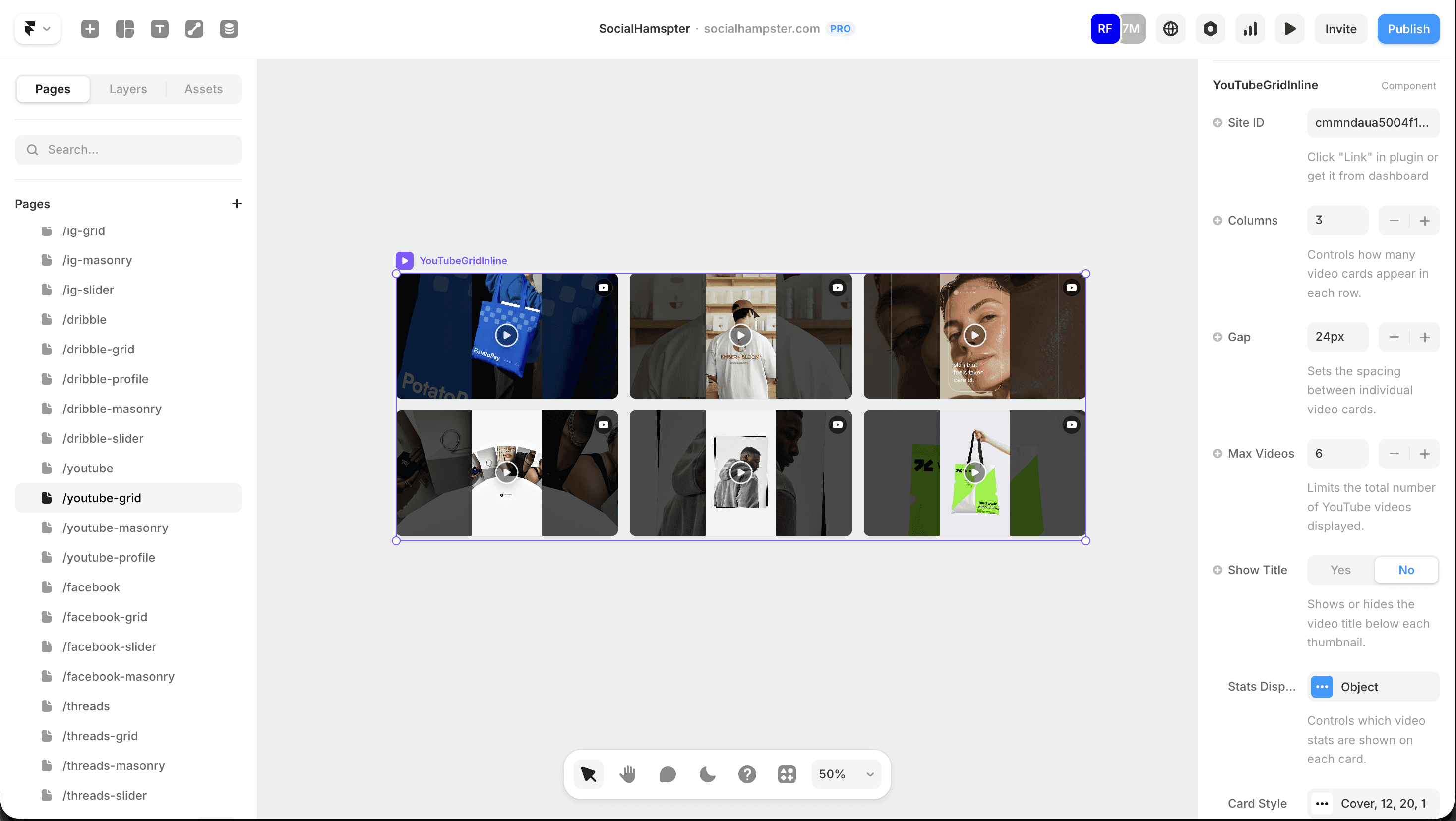
💡 What you'll learn: How to install the Social Hampster Framer plugin, connect your YouTube channel, and configure the YouTube Grid, Slider, and Channel Profile components with accurate prop reference for each.
Why Embed a YouTube Feed in Your Framer Site?
Embedding your YouTube channel on your website creates a content loop visitors watch a video, stay longer, and are more likely to subscribe or convert. But iFrame-based solutions break Framer's design model: they don't respect your breakpoints, conflict with your CMS, and create layout headaches.
Social Hampster's YouTube components are Framer-native. They live in your Layers panel, snap to your grid, scale responsively across breakpoints, and inherit your site's typography exactly like any other Framer component.
YouTube Components Available in Social Hampster
Social Hampster provides three YouTube components for Framer:
YouTube Grid A responsive multi-column grid of video cards with thumbnails, titles, stats (views, likes, comments, date), and captions.
YouTube Slider A horizontal carousel of video cards with auto-scroll, custom arrows, and all the same card customization as the Grid.
YouTube Channel Profile A full-featured channel card showing your avatar, channel name, handle, bio, subscriber stats, and an embedded video grid all in a single component.
No other Framer plugin offers a YouTube Channel Profile component.
The Profile component replaces an entire custom-coded "About My Channel" section with avatar, bio, stats row, and a shots grid, all dynamically populated from your YouTube account.
Step-by-Step: How to Embed YouTube in Framer
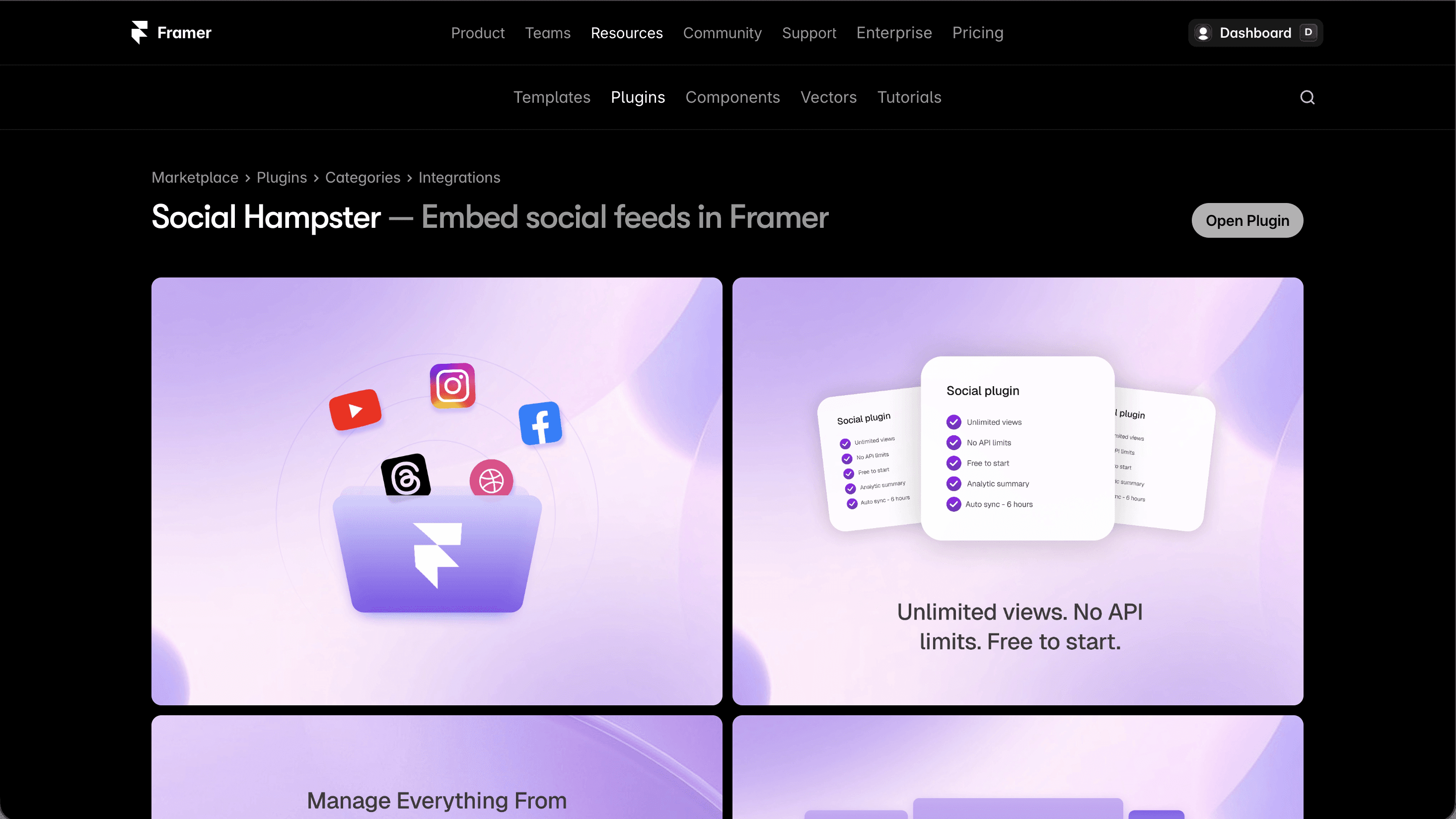
Install Social Hampster in Framer
Open your Framer project. Click the Plugins icon (puzzle piece) in the left toolbar. Search Social Hampster → click Install. The plugin opens directly inside Framer no external tabs. After that, it is available in your Framer plugins list whenever you need it. Read docs for full picture.
Connect Your YouTube Channel
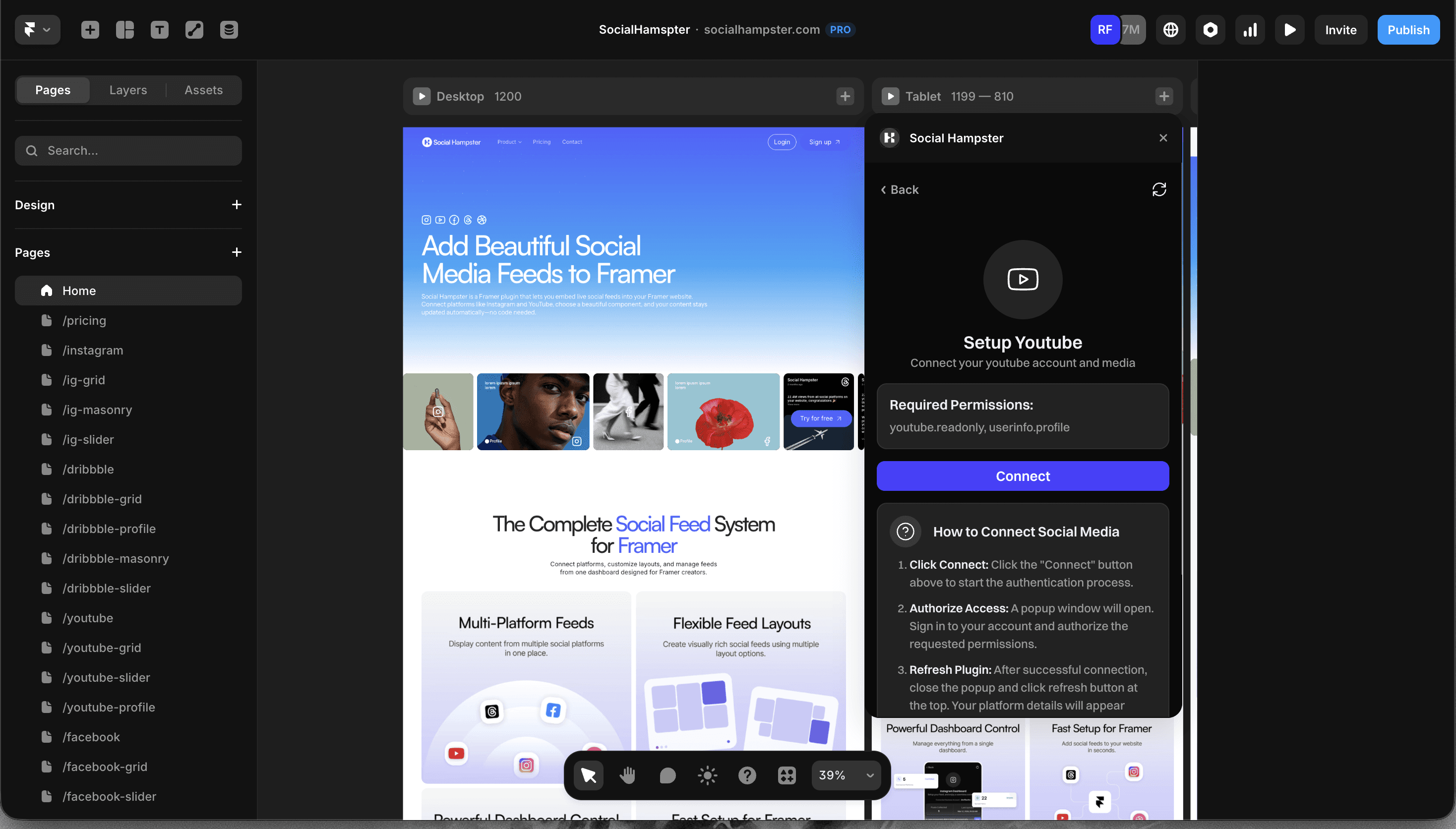
Inside the plugin panel, select YouTube from the platform list. Sign in with your Google account to authorize Social Hampster. Once connected, copy your unique siteId from the dashboard this is what links the component to your channel.
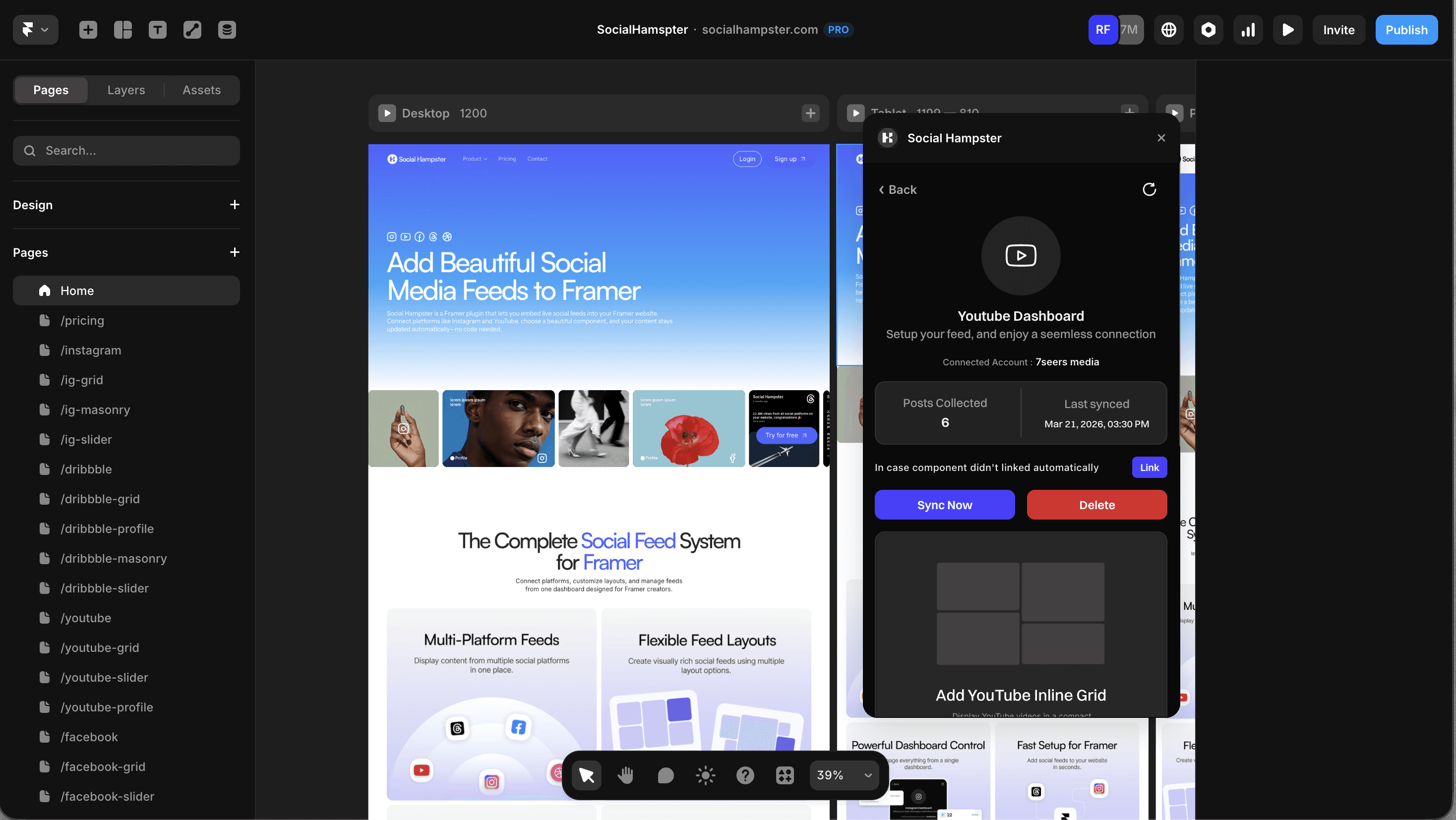
Drag a YouTube Component to the Canvas
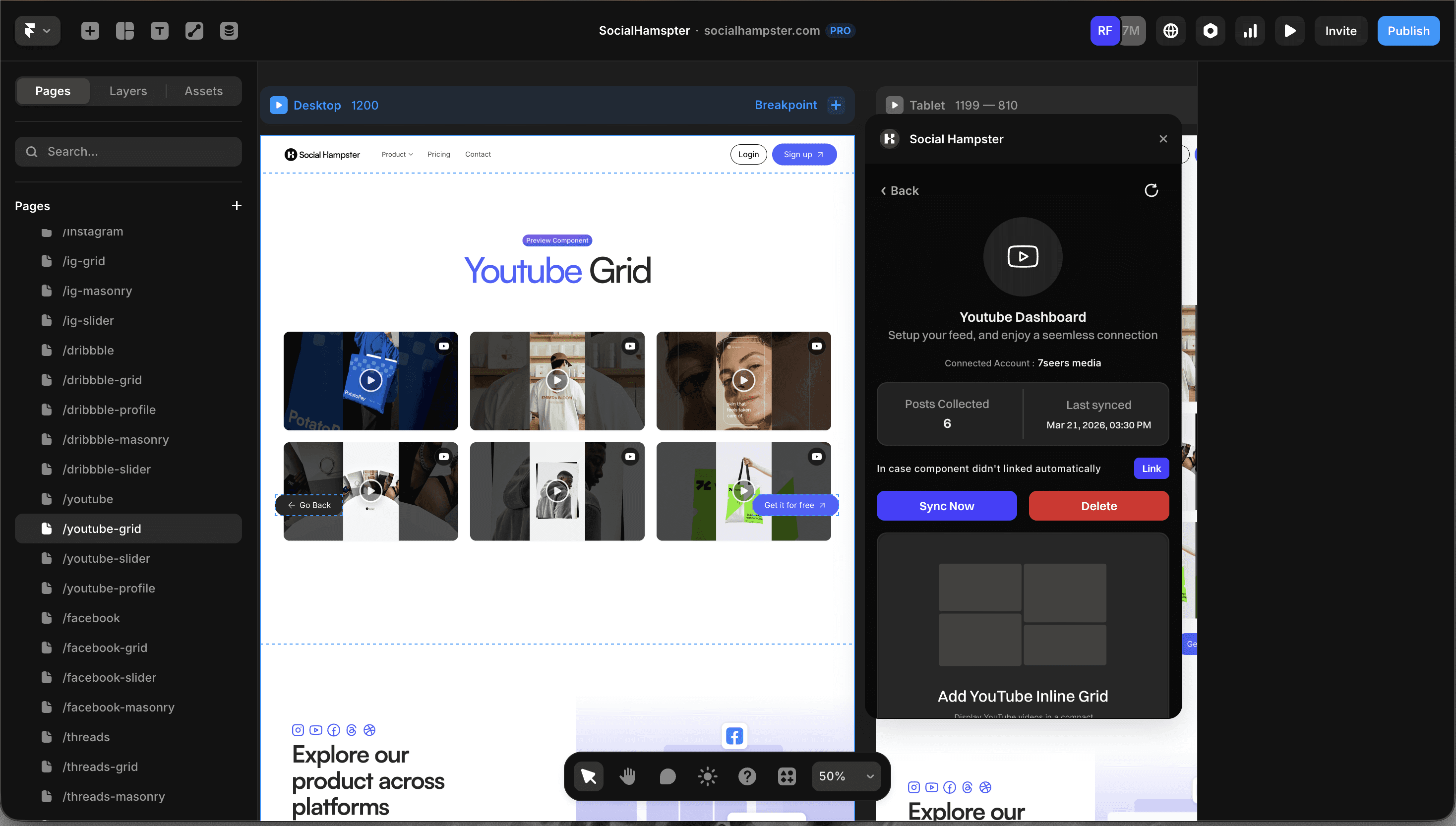
In the plugin panel, click to insert a YouTube Grid, Slider, or Profile. The component appears on your Framer canvas and shows a preview state until you connect your siteId.
Paste Your siteId in Properties
Select the component on the canvas. In the right-hand Properties panel, find the siteId field and paste your ID. The live feed loads immediately.
Customize Layout, Stats & Styling
Adjust columns, gap, maxPosts, statsConfig and cardStyle directly from the Properties panel. No code required.
Publish Your Framer Site
Hit Publish in Framer. Your YouTube feed is now live and will auto-update as you post new videos.
YouTube Grid Component Props Reference
The YouTube Grid is the standard multi-column layout for video feeds. Here are the available props:
Prop | Type | Description |
|---|---|---|
siteId | string | Your unique Social Hampster site ID (connects component to your YouTube channel) |
columns | number | Number of grid columns (e.g. 3 for desktop) |
gap | number | Spacing in px between video cards (default: 12) |
maxPosts | number | Maximum number of videos to display |
showCaption | boolean | Show video title below the thumbnail |
statsConfig.showViews | boolean | Display view count on each card |
statsConfig.showLikes | boolean | Display like count on each card |
statsConfig.showComments | boolean | Display comment count on each card |
statsConfig.showDate | boolean | Display publish date on each card |
cardStyle.aspectRatio | number | Card image aspect ratio (default: 1 for square; use 1.77 for 16:9) |
cardStyle.radius | number | Card border radius in px (default: 28) |
cardStyle.background | string | Placeholder background color (default: #f3f4f6) |
cardStyle.imageFit | "cover" | "contain" | How thumbnail fills the card area |
cardStyle.lazy | boolean | Lazy-load thumbnails for performance |
cardStyle.overlay | string (color) | Optional color overlay on thumbnail hover |
cardStyle.iconSize | number | Play icon size on the thumbnail overlay |
📌 YouTube's statsConfig is unique
Unlike Instagram or Facebook which use a single
showStatstoggle, YouTube's Grid and Slider use astatsConfigobject so you can individually control views, likes, comments, and date. This gives you much finer control over what stats appear on each video card.
YouTube Slider Component Props Reference
The YouTube Slider adds horizontal scrolling to your video grid, with optional auto-scroll and custom arrow controls. It includes all the same props as the Grid, plus:
Prop | Type | Description |
|---|---|---|
autoScrollInterval | number | Auto-scroll interval in ms (0 = disabled) |
showArrows | boolean | Show prev/next navigation arrows |
useCustomArrows | boolean | Replace default arrows with custom Framer components |
leftArrow | React.ReactNode | Custom left arrow component (optional) |
rightArrow | React.ReactNode | Custom right arrow component (optional) |
arrowPosition.leftArrowX | number | X offset for the left arrow |
arrowPosition.leftArrowY | number | Y offset for the left arrow |
arrowPosition.rightArrowX | number | X offset for the right arrow |
arrowPosition.rightArrowY | number | Y offset for the right arrow |
arrowPosition.iconColor | string | Arrow icon color |
arrowPosition.backgroundColor | string | Arrow button background color |
YouTube Channel Profile Component The Unique USP
The YouTube Channel Profile is Social Hampster's standout component. No other Framer plugin offers this. It generates a complete channel profile card avatar, channel name, handle, bio, subscriber count, total views, and a video grid all from a single siteId.
It's the fastest way to add an "About My Channel" or "Featured Creator" section to any Framer website.
Profile Component Key Prop Groups
The YouTube Profile component exposes several prop groups for fine-grained control:
layout Structure & Sizing
Prop | Type | Description |
|---|---|---|
layout.avatarSize | number | Channel avatar diameter in px |
layout.padding | number | Inner padding of the profile card |
layout.containerRadius | number | Border radius of the profile card container |
layout.buttonRadius | number | Border radius of the subscribe/CTA button |
layout.shotColumns | number | Columns for the in-profile video grid |
layout.shotGap | number | Gap between videos in the in-profile grid |
layout.shotRadius | number | Border radius for each video thumbnail |
content What to Show
Prop | Type | Description |
|---|---|---|
content.showBio | boolean | Show channel description / bio |
content.showLocation | boolean | Show channel location if set |
content.showStatShots | boolean | Show total video count stat |
content.showStatFollowers | boolean | Show subscriber count |
content.showStatFollowing | boolean | Show following count (if available) |
content.showStatLikes | boolean | Show total likes count |
content.showShotsGrid | boolean | Show the in-profile video grid |
content.maxShots | number | Max videos to show inside profile grid |
content.showShotFooter | boolean | Show title/stats below each thumbnail in profile grid |
style Colors
Prop | Type | Description |
|---|---|---|
style.backgroundColor | string | Profile card background color |
style.textColor | string | Primary text (channel name) color |
style.secondaryTextColor | string | Secondary text (bio, stats labels) color |
style.accentColor | string | Accent color for highlights |
style.buttonColor | string | CTA button background color |
style.buttonTextColor | string | CTA button text color |
style.shotBackground | string | Background color for video thumbnail placeholders |
Button & CTA Options
Prop | Type | Description |
|---|---|---|
showButton | boolean | Show the CTA button on the profile card |
useCustomButton | boolean | Replace default button with a custom Framer component |
buttonLabel | string | Button text (default: "Visit Channel") |
enableCustomPosition | boolean | Enable manual button positioning |
buttonPosition.positionX | number | Custom X position for button |
buttonPosition.positionY | number | Custom Y position for button |
buttonPosition.anchor | string | "top-right" | "top-left" | "bottom-right" | "bottom-left" |
Best Use Cases for YouTube in Framer
Creator portfolios: Show your latest videos and subscriber count on your personal site with the Channel Profile component.
SaaS tutorial libraries: Embed a YouTube Grid on your docs or product page, filtered by
maxPoststo show only the most recent tutorials.Agency/brand sites: Drop the YouTube Slider into a "Resources" section to showcase webinars, case studies, or branded content.
Course landing pages: Use the YouTube Grid with
statsConfig.showViews=trueto display social proof (view counts) on each video card.Media & journalism: Keep a live video news feed updated without touching the Framer editor it auto-fetches your latest uploads.

Try YouTube in Framer for free →
Free plan includes 3,000 views/mo. Paid plans are unlimited. Add your YouTube channel in under 2 minutes.
Social Hampster vs Other Framer YouTube Plugins
Most "Framer social feed" tools are either general embed widgets (iFrame-based) or don't support YouTube at all. Here's how Social Hampster compares:
Feature | Social Hampster | Elfsight | Behold | SociableKit |
|---|---|---|---|---|
YouTube Grid | ✓ | ✓ | ✗ | Partial |
YouTube Slider | ✓ | Partial | ✗ | ✗ |
YouTube Channel Profile | ✓ Unique | ✗ | ✗ | ✗ |
Framer-native (no iFrame) | ✓ | ✗ iFrame | ✗ iFrame | ✗ iFrame |
Granular statsConfig | ✓ per stat | ✗ | ✗ | ✗ |
Free plan view cap | 3,000/mo (unlimited on paid) | 1,000/mo | 1,000/mo | Limited |
Framer plugin panel | ✓ | ✗ | ✗ | ✗ |
Pricing Including a Generous Free Plan
Social Hampster offers a free plan with 3,000 views/mo already 3x more than competitors and paid plans include unlimited views.
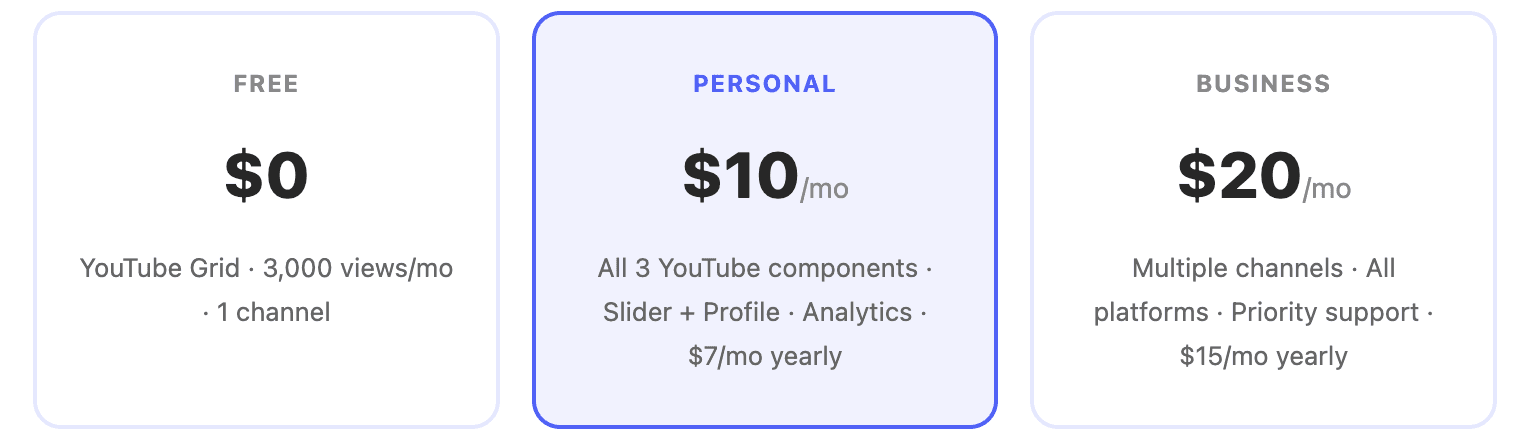
✅ Why unlimited views matters
Competitors like Elfsight and Behold cap free plans at 1,000 views/month meaning after ~33 visitors per day your feed breaks or goes blank. Social Hampster's free plan gives you 3,000 views/mo, and paid plans are unlimited.
Frequently Asked Questions
Can I embed a YouTube feed in Framer without code?
Yes. Social Hampster is a Framer-native plugin. You drag a YouTube Grid, Slider, or Profile component onto your canvas, paste your siteId, and the feed populates automatically no code needed.
What YouTube components does Social Hampster offer?
Three: YouTube Grid (multi-column video grid), YouTube Slider (horizontal carousel with optional arrows and auto-scroll), and YouTube Channel Profile (full channel card with avatar, bio, stats, and embedded video grid).
Does the YouTube feed update automatically in Framer?
Yes. Your feed refreshes every 24 hours on the Free plan and every 6 and 2 hours on Personal and Business plans. No republishing your Framer site is required.
Can I show view counts and subscriber counts on my Framer site?
Yes. Use statsConfig.showViews, statsConfig.showLikes, statsConfig.showComments, and statsConfig.showDate on the Grid and Slider. The Profile component shows subscriber count and total video count via the content prop group.
Is the YouTube embed free in Social Hampster?
Yes Social Hampster's free plan includes 3,000 views/month, already 3x more than competitors that cap at 1,000 views/month. Paid plans (Personal and Business) include unlimited views.
Does Social Hampster use iFrames?
No. All components are Framer-native they appear in your Layers panel, respond to breakpoints, and inherit your site's fonts and design system. No iFrame overhead.
Can I customize the YouTube Channel Profile layout?
Yes. The Profile component exposes layout, style, content, typography, statsSettings, textLayout, and buttonPosition prop groups for complete control over appearance and structure.
More Social Feed Guides for Framer
Looking to embed other platforms? Social Hampster supports Instagram, Facebook, Threads, and Dribbble too:
Add Your YouTube Feed to Framer Free
Install Social Hampster, connect your YouTube channel, and embed a live Grid, Slider, or Channel Profile in under 5 minutes. No code. No iFrame. Free plan includes 3,000 views/mo paid plans are unlimited.